Display text with Godot
In this tutorial we will see how to display a text in godot using RichTextLabel through the godot editor and also through code.
- Godot Engine

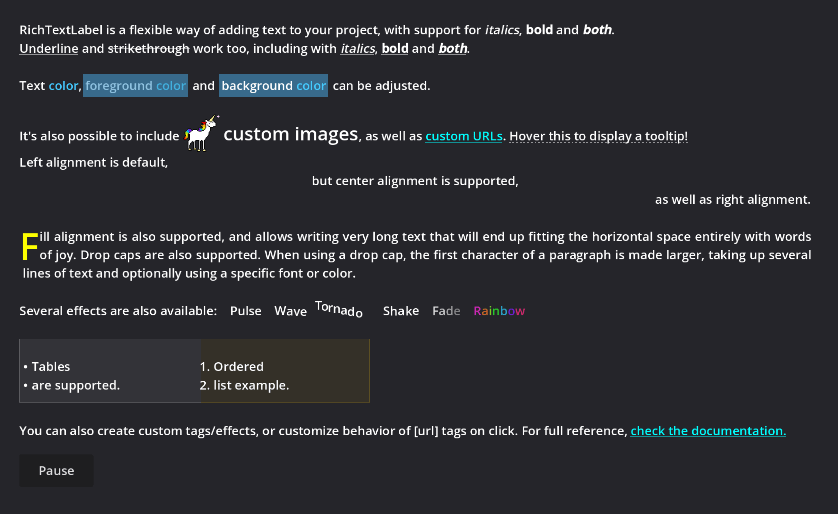
In this example we will use RichTextLabel to display text with Godot through code, we will also use a custom font to display the text.
Here is the bbcode of text we want to display with all the effect:
RichTextLabel is a flexible way of adding text to your project, with support for [i]italics[/i], [b]bold[/b] and [i][b]both[/b][/i].[u]Underline[/u] and [s]strikethrough[/s] work too, including with [u][i]italics[/i][/u], [u][b]bold[/b][/u] and [u][i][b]both[/b][/i][/u].Text [color=#4cf]color[/color], [fgcolor=#49c9]foreground [color=#4cf]color[/color][/fgcolor] and [bgcolor=#49c9]background [color=#4cf]color[/color][/bgcolor] can be adjusted.It's also possible to include [img]res://unicorn_icon.png[/img] [font_size=24]custom images[/font_size], as well as [color=aqua][url=[https://godotengine.org](https://godotengine.org)]custom URLs[/url][/color]. [hint=This displays a hint.]Hover this to display a tooltip![/hint]Left alignment is default,[center]but center alignment is supported,[/center][right]as well as right alignment.[/right][fill][dropcap font_size=48 color=yellow margins=0,-10,0,-12]F[/dropcap]ill alignment is also supported, and allows writing very long text that will end up fitting the horizontal space entirely with words of joy. Drop caps are also supported. When using a drop cap, the first character of a paragraph is made larger, taking up several lines of text and optionally using a specific font or color.[/fill]Several effects are also available: [pulse]Pulse[/pulse] [wave]Wave[/wave] [tornado]Tornado[/tornado] [shake]Shake[/shake] [fade start=75 length=7]Fade[/fade] [rainbow]Rainbow[/rainbow][table=2][cell border=#fff3 bg=#fff1][ul]Tables are supported.[/ul][/cell][cell border=#fc13 bg=#fc11][ol]Ordered list example.[/ol][/cell][/table]You can also create custom tags/effects, or customize behavior of [lb]url[rb] tags on click. For full reference, [color=aqua][url=[https://docs.godotengine.org/en/latest/tutorials/gui/bbcode_in_richtextlabel.html](https://docs.godotengine.org/en/latest/tutorials/gui/bbcode_in_richtextlabel.html)]check the documentation.[/url][/color]To display the unicorn icon you will need to download the image: unicorn_icon.png

You can create a project: 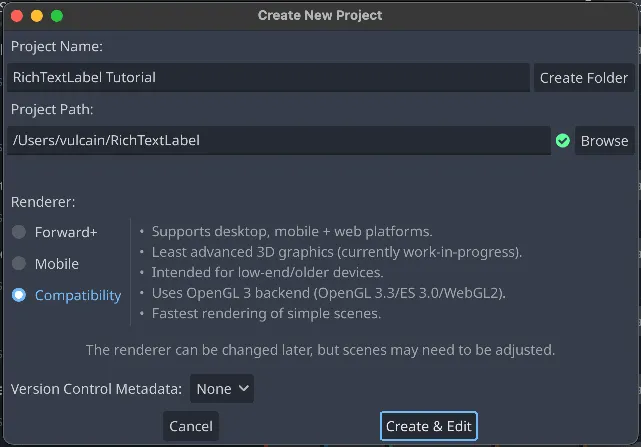
- For the root node create a 2D Node.
- Add a child node to the root node and select RichTextLabel node.
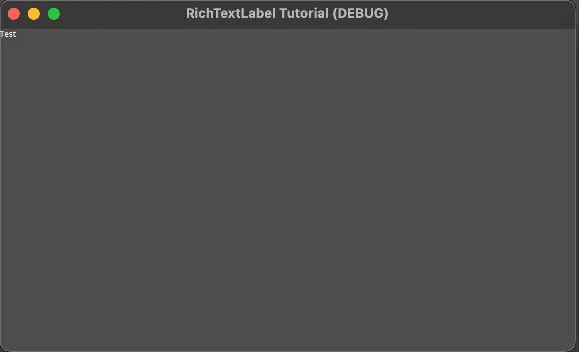
- To check if everything is working add some text to the RichTextLabel node, for example with “Test”.
- Save and run the scene.
Set the text through code
The next thing to test is creating a script to set the text:
extends RichTextLabel

func _ready():
    self.set_fit_content(true)
    self.set_autowrap_mode(TextServer.AUTOWRAP_OFF)
    self.bbcode_enabled = true
    self.position = Vector2(100, 200)
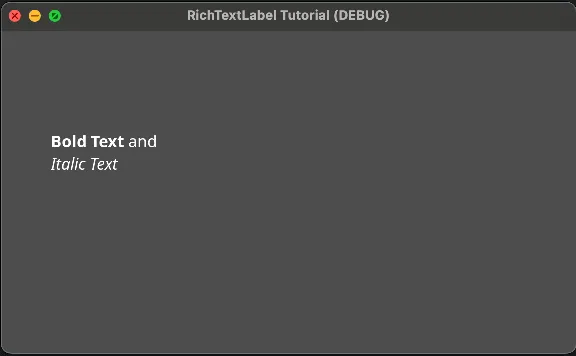
    self.set_text("[b]Bold Text[/b] and\n[i]Italic Text[/i]")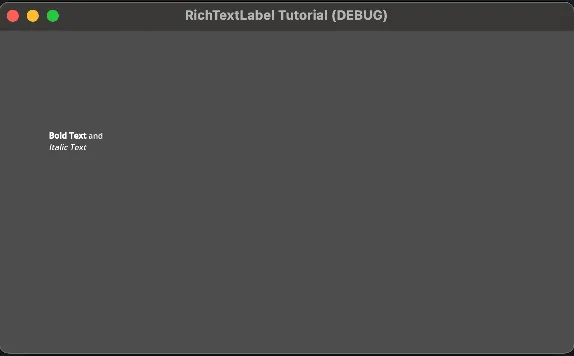
Use a custom font and modify the font size
For this part, import a new font in the resources (e.g., NotoSans.zip). When you use a font with Godot, check that you get the static file; you should have separate files for the italic font and the bold font.
After the importation, put the imported files in a Fonts directory:
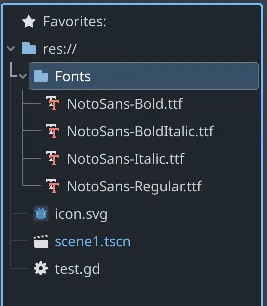
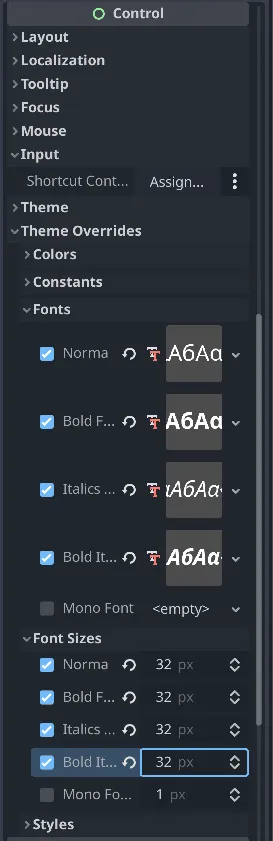
When you see the file, you can set the custom font inside the theme override of the RichTextLabel.
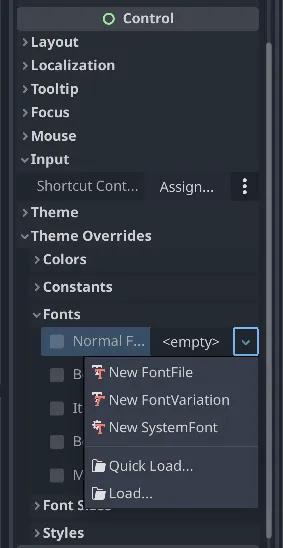
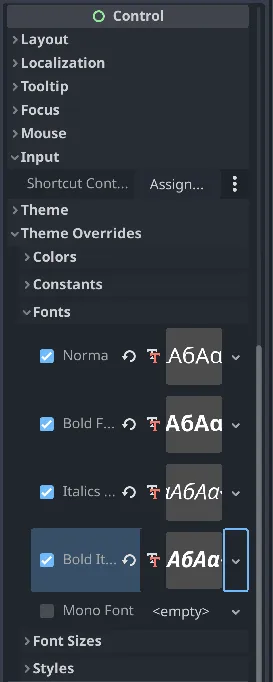
After the fonts are loaded you can set the font size:
You can then try to run the example and you should see the result:
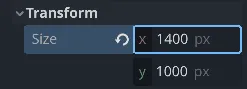
After this example you can try to run the full example at the beginning, for that copy paste the text inside the RichTextLabel and then set the size of the transform:
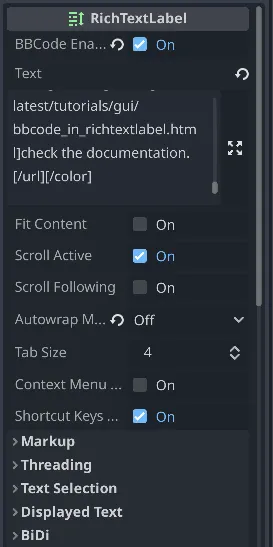
Here are some important parameters to check before executing the example:
The full project
You can download the complete project: RichTextLabel.7z