
Static build of SFML
Start developing with SFML on your IDE: Visual Studio, Code::Blocks, XCode on Windows Mac, Linux. Make a static build of SFML.
- SFML

Benefits of Static Linking
- No External Dependencies at Runtime: Everything is inside your executable—no need to distribute .dll/.so/.dylib files.
- Better Portability: Easier to distribute your app across platforms and package it as a single binary.
- Less Risk of Version Conflicts: No mismatches with external SFML versions on user systems.
- Possible Performance Boost: Compilers can optimize better (e.g., inlining functions), though the gain is usually small.
Downsides of Static Builds
| Issue | Description |
|---|---|
| Larger file size | The executable contains all SFML code, making it significantly larger. |
| License Requirements | SFML is zlib-licensed, but you must ensure other statically linked libs (e.g. OpenAL, FreeType) comply too. |
| Longer Compile Time | Static builds often take longer to build and link. |
| Manual Linking | You must explicitly link all static dependencies, which can get tricky. |
When to Use a Static Build?
| Situation | Recommended? |
|---|---|
| Game jam or solo game project | Yes |
| Distributing a CLI tool | Yes |
| Cross-platform GUI app | Usually |
| Large modular engine | Prefer dynamic |
| Hot-reloading libraries | Dynamic is better |
The goal in this tutorial is to create a static build of SFML.
For visual studio
The first thing to do is pick the version compiled with the right version on the official website
If you have a 64 bits computer you can still pick the 32 bits version to support the older computers.
But nowadays a lot of softwares drop the 32 bit support. In my opinion you can pick the 64 bit version with no problem.
After Creating a project with visual studio add a main cpp file.
Unzip the file you downloaded, After that in the main you can add:
#include <SFML/Graphics.hpp>

int main() {
    sf::RenderWindow window(sf::VideoMode(400, 200), "SFML Installation");

    while (window.isOpen()) {
        sf::Event ev;
        while (window.pollEvent(ev)) {
            if (ev.type == sf::Event::Closed)
                window.close();
        }
    }
    return 0;
}
Then you need to add the dll in the folder of the executable.
- sfml-graphics-2.dll
- sfml-system-2.dll
- sfml-window-2.dll
What if I don’t want to have to pack all the dlls for each modules ?
For that you will need to static link the SFML library, meaning the library will be pack in the executable.
On my computer with the DLLs the executable is very small : 10Kb.
Static linking
The first thing to do is change the linking of the libraries and take the static version of the SFML and the dependencies :
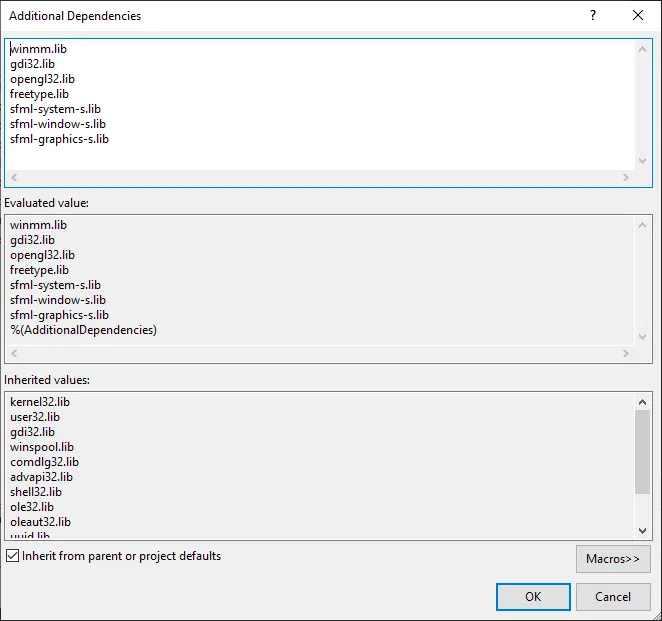
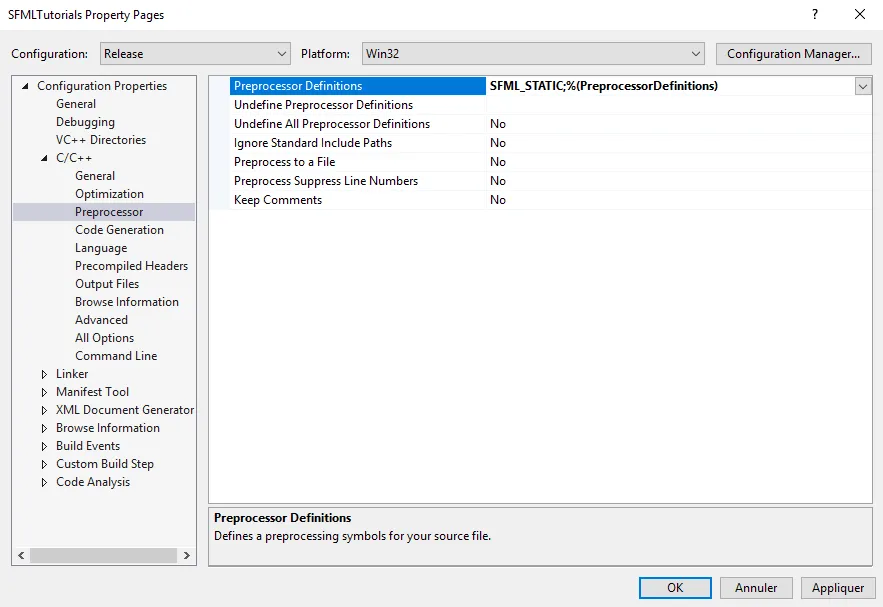
SFML need to know the linking mode, so we need to define the macro SFML_STATIC :
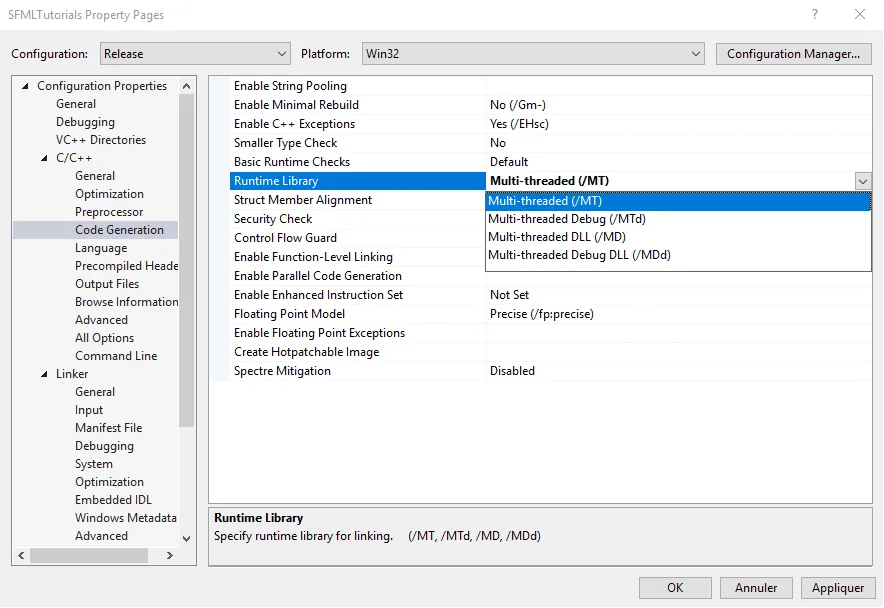
If the SFML library has been compiled with argument MT, meaning the runtime library is statically linked you need to change the code generation :
You can download the example of static build of sfml : SFMLTutorials.exe
In this case even the static version is pretty small 109KB :).