Sprite sheet with Unity
Tutorial to help you import and use sprite sheet with Unity and also how to reduce the number of draw calls with Sprite Atlas.
- Unity

What is a sprite sheet?
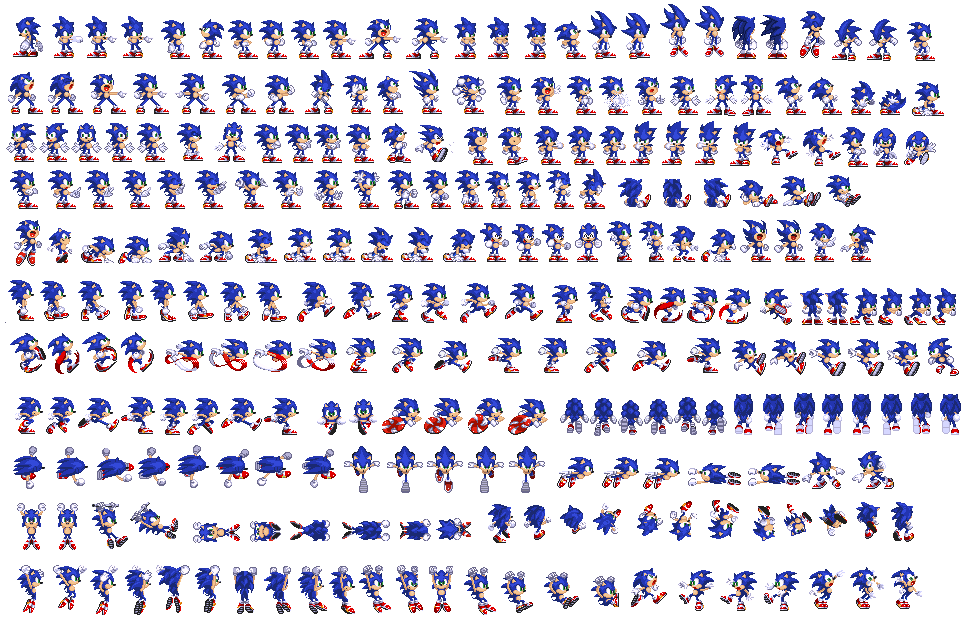
A sprite sheet is a single image file that contains multiple graphics or frames of animation, usually organized in a grid layout. These frames are often small images called sprites that represent different states, poses, or actions of a character or object in a game or animation.
Sprite sheets are commonly used in video game development and 2D animation because they help optimize performance by reducing the number of separate image files that need to be loaded. Instead of loading dozens or hundreds of small files individually, the game or animation engine loads one larger image and then uses coordinates (x, y, width, height) to extract each sprite from the sheet as needed.
Advantages
- Improves performance, reduces the number of separate file loads, which speeds up rendering.
- Simplifies animation, makes it easier to manage frames for animated characters.
- Better memory management — fewer file handles and more efficient use of graphics memory.
Import sprite sheets
Importing sprite sheet with Unity is simple, just drag and drop the sprite sheets in the resource folder.
If you need a sprite sheet you can test with this one : sonic-sprite-sheet.png
Next make sure the Sprite mode is set to Multiple :
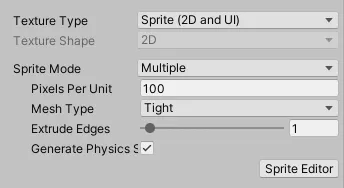
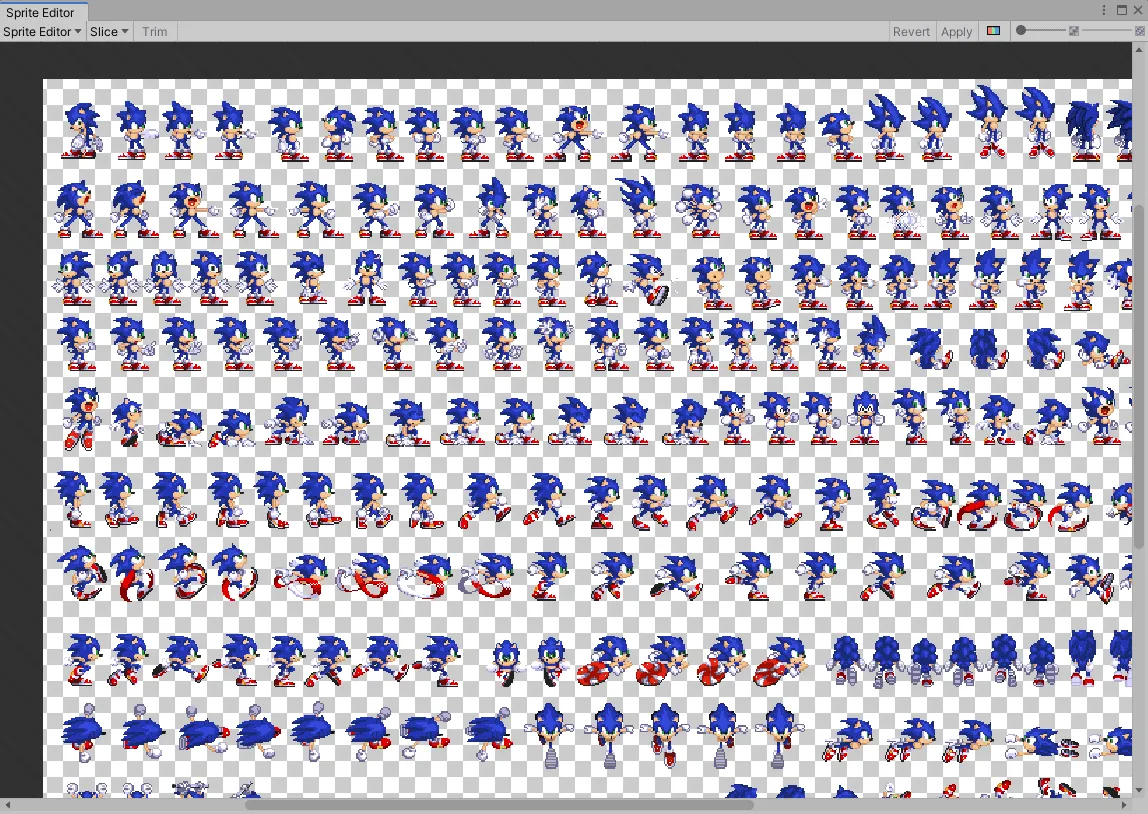
Then you can open the Sprite Editor :
You can slice the sprites, normally you do not need to tchange the default options :
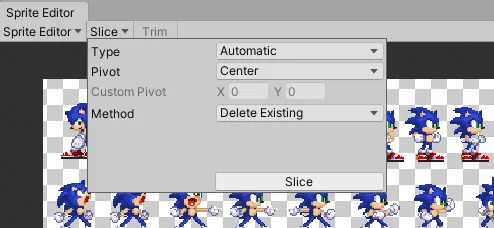
After the sprite sheet slicing, you can click on Apply to confirm the change or Revert.

After the slicing you should have :
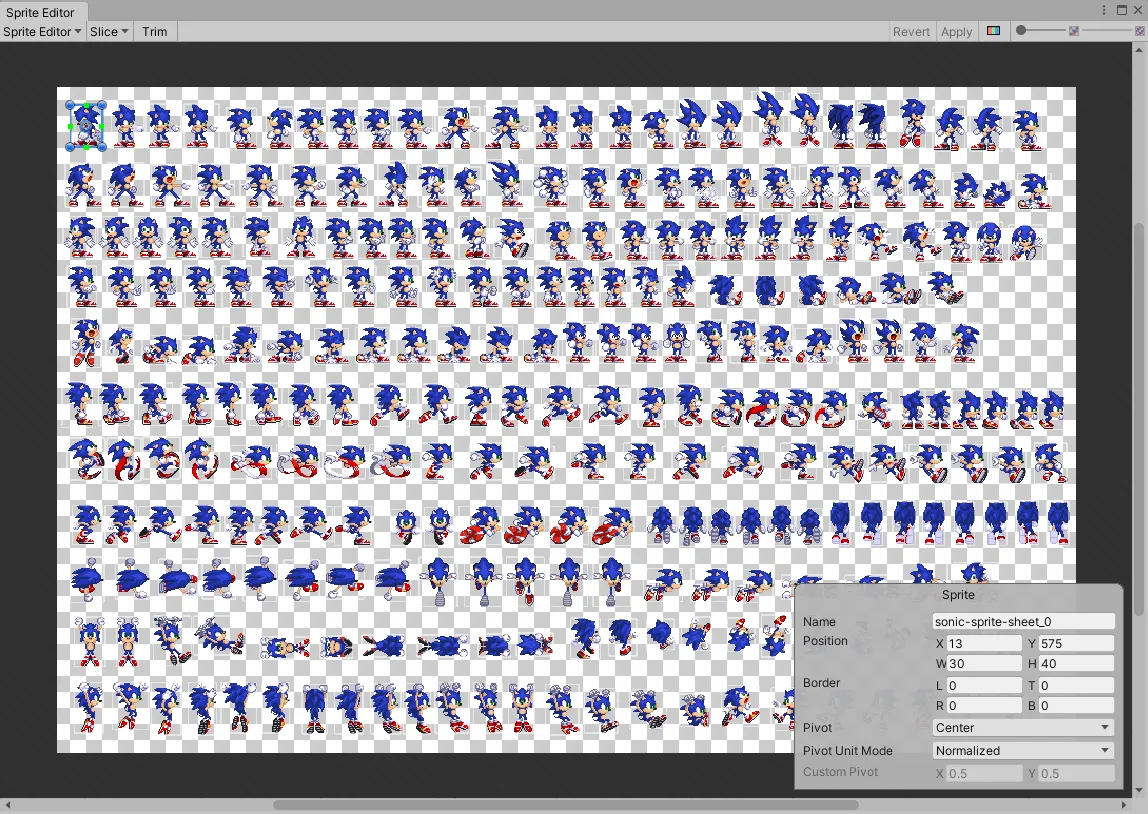
In the resource folder you see the sprites :
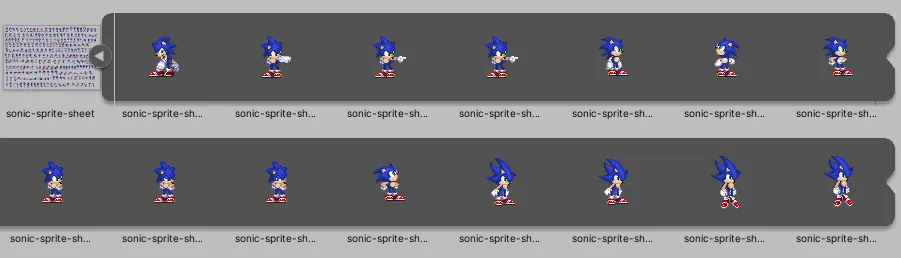
Everything is done, you can now use the sprites in your game!
Reduce the number of draws calls: Sprite Atlas
If you want to reduce the number of draws calls but you have multiple sprites in your games, you can generate a sprite sheet with unity, those are call Sprite Atlas.
To create a Sprite Atlas you can do it in less than 1 minutes : Right click on you resource folder
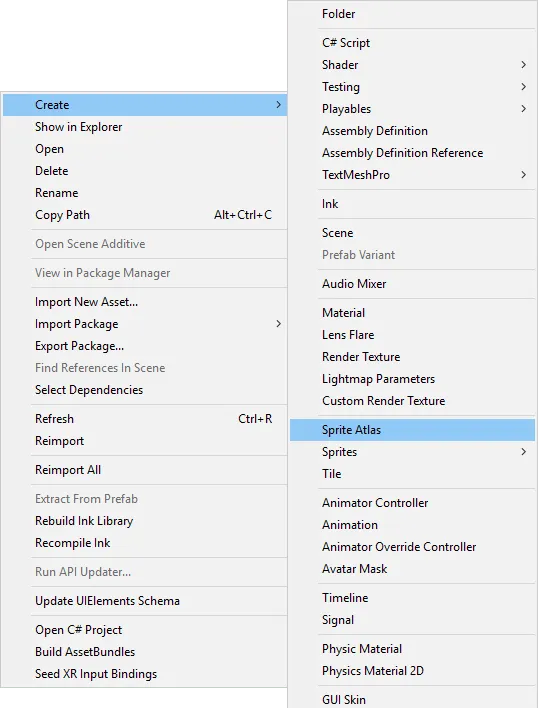
Then you can add the sprites you want to pack in the Inspector:
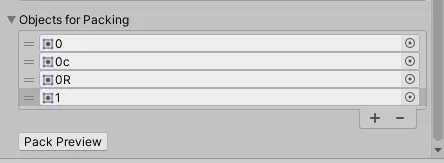
You can render you Sprite Atlas with the button Pack Preview.
Unity should be able to use your Sprite Atlas you do not need to do anything else.